One app for
all your RtiTek Bluetooth devices
Add devices, check their status, share them with your family and update their firmware, all in one app. Each product brings its own controls, called an applet, which open when you tap the device. Your phone talks to devices directly over Bluetooth, and you do not need an account.
Many products, one app
Thermostats, radiator valves and other kinds of devices share one list. Adding, sharing and updating work the same way for all of them.
Each product, its own controls
The controls come from the product as an applet. It opens inside the app and can be updated on its own.
Direct Bluetooth, no account
Commands go straight from your phone to the device, not through a server. There is no account to create, and everything keeps working when the internet is down.
Only Bluetooth between phone and device
Whatever the product, every action you take on the phone goes to the device over Bluetooth, and the device reports its state back the same way.
- A device accepts only the phones it is paired with and the phones you shared it with.
- A device connects to one phone at a time. Other phones can connect once that phone disconnects.
- Without an internet connection you can still add devices and control them.
Scan the QR code on the device to add it
Tap the scan icon at the top left of the home screen and point the camera at the QR code on the device or its packaging. The app recognizes the product, finds the device, pairs with it and then opens its controls.
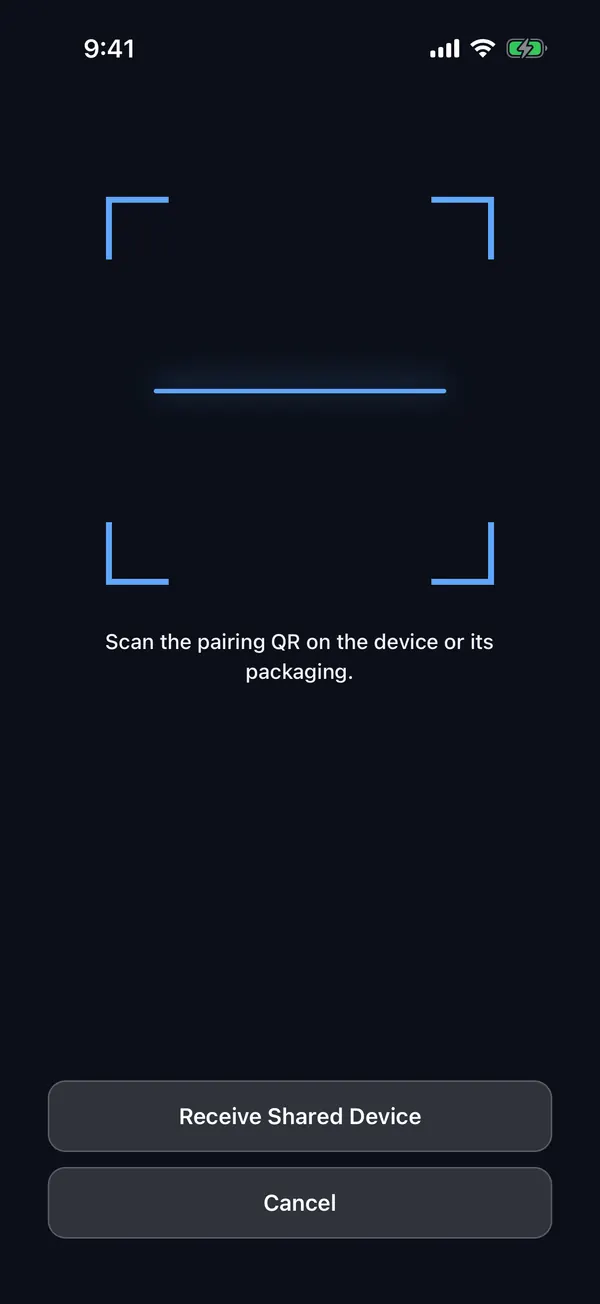
1Point at the QR code
No shutter button: the code is read as soon as it is in view.
RT-1234
Pairing…
- Starting Bluetooth…
- Looking for your device…
- Connecting…
- Pairing…
- Saving device…
- Paired!
2Wait for pairing to finish
Progress appears step by step (excerpt shown). Keep the phone next to the device until it finishes.
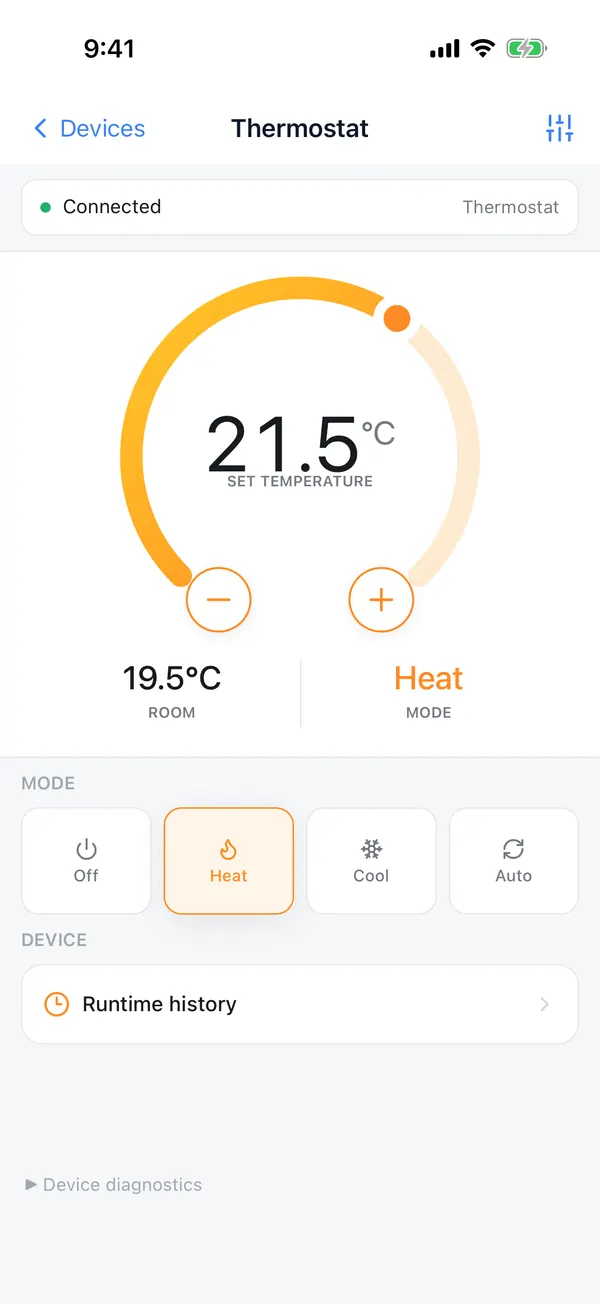
3Open the controls
Once paired, the device's controls open right away (a thermostat is shown).
Can't scan the QR code? Tap + at the top right of the home screen, pick the device from the nearby devices, and enter the 11-digit setup code printed on it. Pairing details vary slightly between products.
Both ways to add a deviceAll your products in one list
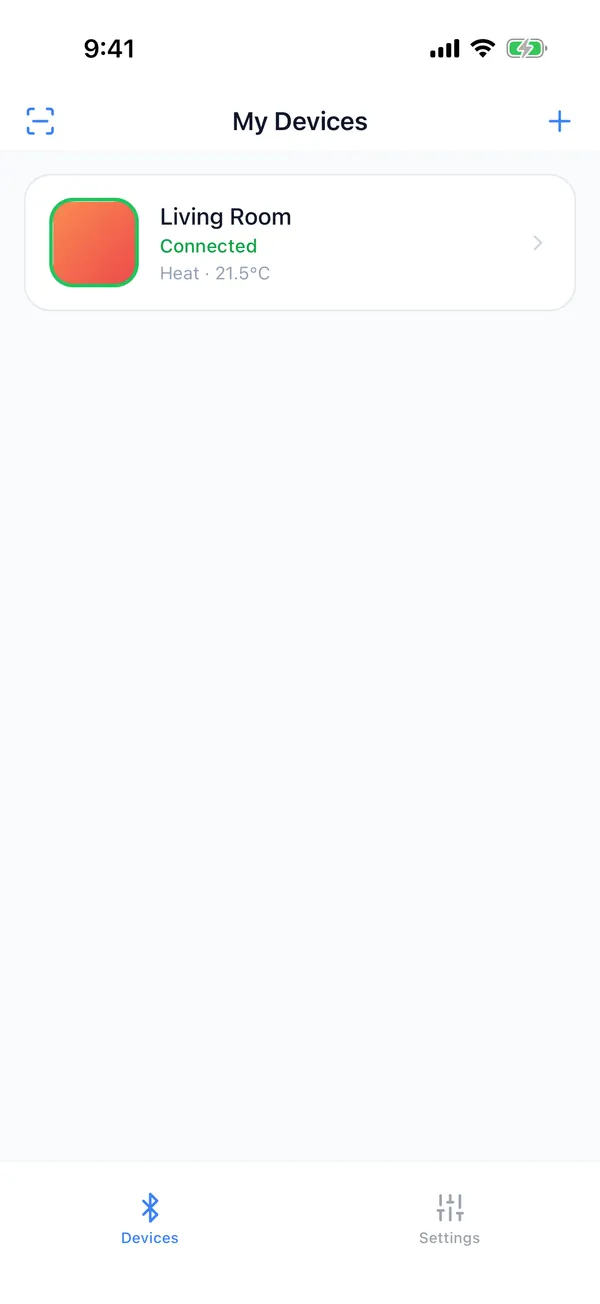
While you are on the Devices tab, the app keeps scanning for nearby Bluetooth signals. Whatever the product, you can see whether it is near your phone and what it was last doing without opening it.
- 1
Scan to add
Scan the QR code on the device. This is the quickest way to add one.
- 2
Scan nearby devices
Without a QR code: pick a nearby device, then enter its setup code.
- 3
Device card
The first line is the device name, which you can change to a room name such as "Living Room". The second line is the connection status, and the third is the last status the device reported, such as a thermostat's mode and temperature.
Tap a device to open the product's own controls
The controls come from the product: each product names an applet, and the app loads it when you open the device. In the picture, the blue frame is the app and the orange frame is the thermostat's applet.
From the app: the same for every product
The top bar (back to the device list, the device name, settings), connecting to the device and verifying it securely, and downloading, updating and switching applet versions.
From the product: different for each product
The controls in the middle. Which data is shown and which settings you can change is up to the product. Different models in the same category can use different applets.
Applets of current products
The app currently supports two categories: thermostats and thermostatic radiator valves (TRVs). The two interfaces below belong to their products, and what they can do depends on the product.
Thermostat applet
- Drag the dial to set the target temperature; see the room temperature
- Switch between Off, Heat, Cool and Auto
- See the runtime history chart
TRV applet
- Five work modes: Manual, Auto, Boost, Holiday and Frost
- Edit the weekly schedule
- Open window detection, child lock, temperature calibration
Let your family use it: two phones, two scans
No new pairing, and no need to touch the device. The two phones scan the QR code on each other's screen, and the other phone can then control the device.
1On the phone that will use the device, tap the scan icon at the top left of the home screen, then tap "Receive Shared Device". A QR code appears.
2On the phone that has the device, open the device settings, tap "Share Device" and scan the other phone's QR code.
3Your phone then shows a new QR code for the other phone to scan. Tap "Done" once the other phone has saved the device.
Update device firmware in the app
When a product has new firmware, open the device settings and tap "Firmware Upgrade". The app downloads the firmware, checks that it fits this device and sends it over Bluetooth.
Step 1
Download
The app downloads the new firmware available for this device.
Step 2
Check the package
It makes sure the firmware matches this device's product and hardware version.
Step 3
Bluetooth transfer
The update screen shows the progress. Keep the app open meanwhile.
Step 4
Verify and install
The device verifies the firmware it received, then installs it. Some products ask you to confirm on the update screen first.
Step 5
Restart
The device restarts; the app reconnects and shows the new version.
Product controls update automatically
Applets are released separately from the app. With "Automatic updates" on, the app fetches a product's new applet whenever it is online, and every device that uses it is updated together. You can also go back to an older version in the version list.
More about updates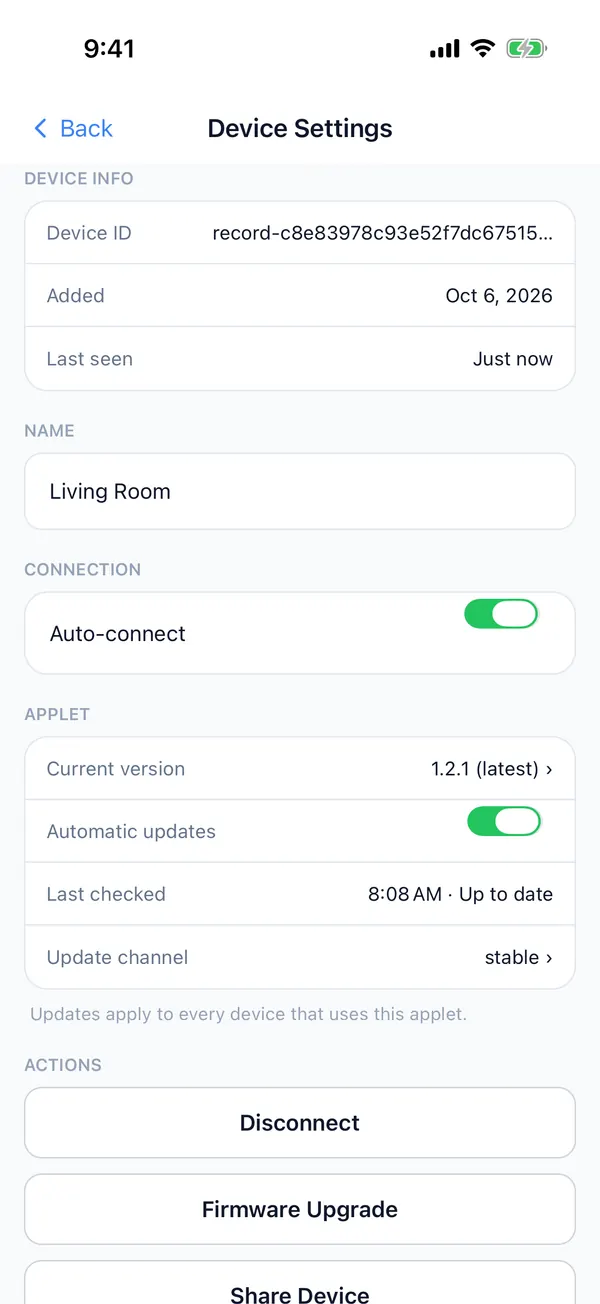
Upload logs and send us the upload ID
Pick a time range and the app uploads the logs from that period, then shows an upload ID. Include the ID when you report a problem so we can see what happened.
How to upload logs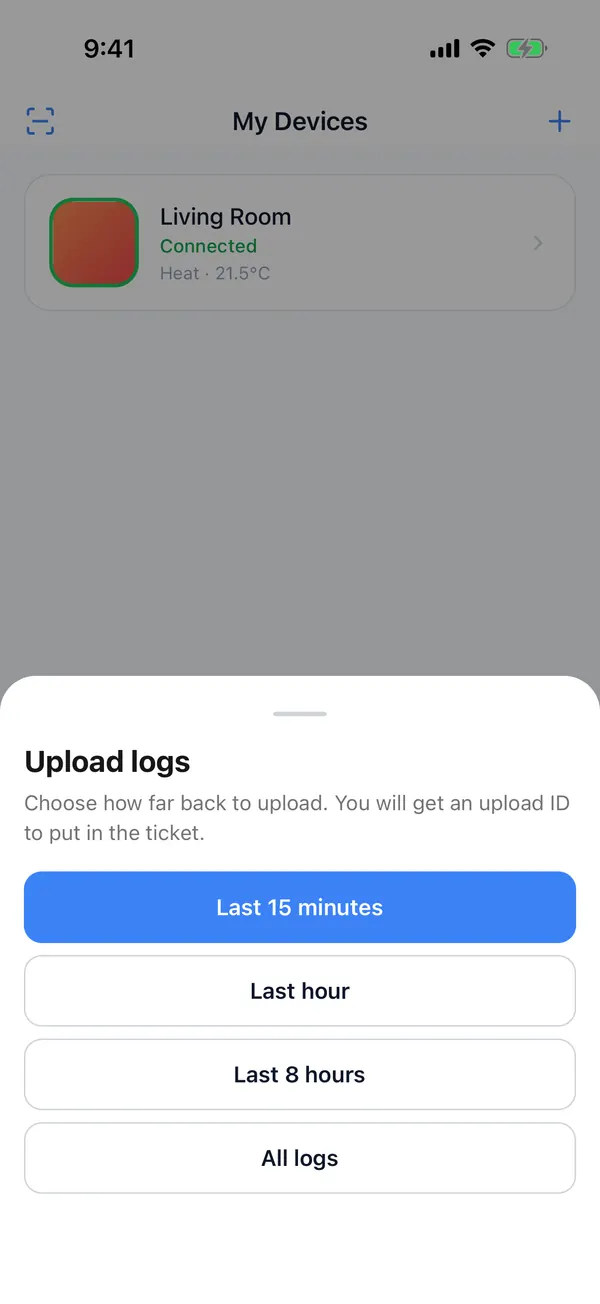
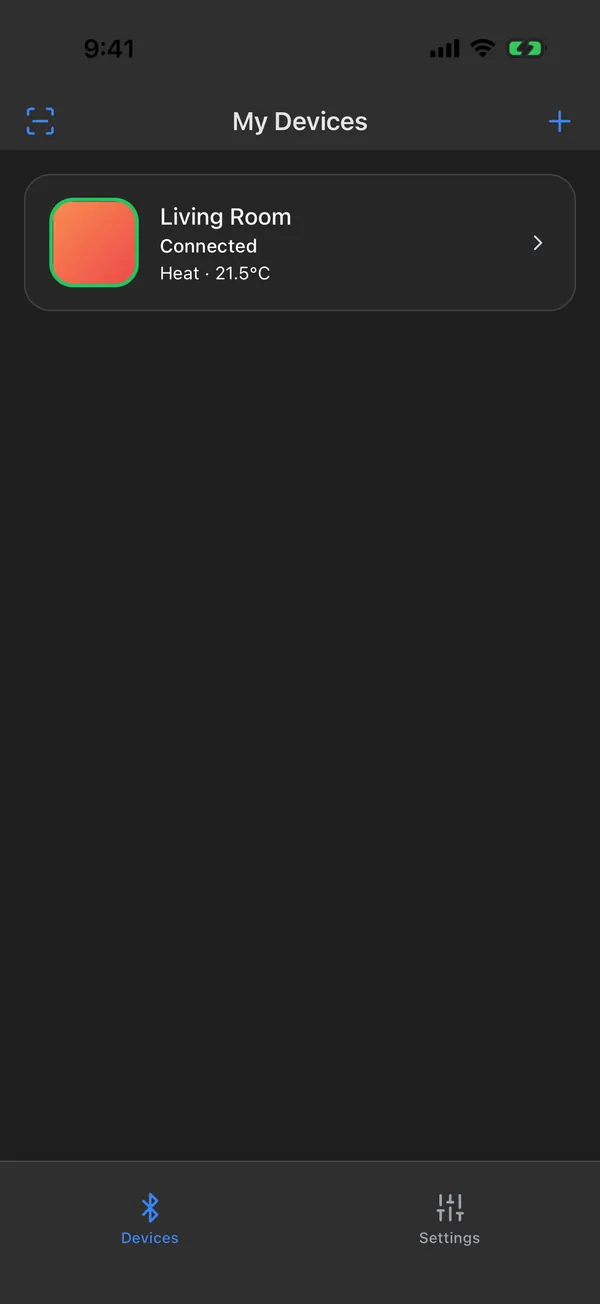
Six languages, light and dark
The app is available in English, Deutsch, Español, Français, Italiano and 简体中文. It follows your phone's language by default, and you can choose one in the settings. The theme can follow the system or stay light or dark.
Light
Dark
FAQ
Do I need an account?
No. The app has no account or password, and the device list and pairing data stay on this phone.
Does it work without internet?
Yes. Adding devices and everyday control use Bluetooth only. Downloading firmware and updating controls need an internet connection.
Why do devices have different controls?
The controls come from each product as an applet and are designed around what that product can do. Different models in the same category can have different controls.
Can my family control the same device?
Yes, with "Share Device": the two phones scan the QR code on each other's screen, and the other phone can then control the device.
What if I get a new phone?
Use "Share Device" to share the device with the new phone, which can then control it without pairing again. Or tap "Unbind" on the old phone and pair the device again with the new one. Exporting the device list is not enough, because the export file contains no pairing data.
Which devices are supported?
RtiTek Bluetooth devices. The app currently supports two categories: thermostats and thermostatic radiator valves (TRVs). If you scan a Matter device from another brand, the app tells you to set it up with that brand's app.
More answers on the Help page.