Update both the device and its controls in the app
The device runs firmware, and the controls you see when you open it are the product's applet. The product releases new versions of both, and the app delivers them to the device and the phone: you install firmware yourself on the update screen, while applets update automatically by default.
Firmware updates
When a product has new firmware, connect to the device and tap "Firmware Upgrade" in the device settings. The update screen shows the device's current firmware version and the version it can update to. The steps differ slightly between products; here are the two current products as examples.
Example 1: thermostat
Step 1
Check for a new version
The app looks up the firmware available for this device and shows the target version.
Step 2
Checks before the update
The app checks the product, hardware, minimum version, signature and more. The results are listed under "Preflight", and the update starts only if all pass.
Step 3
Bluetooth transfer
Tap "Start upgrade" to begin; the screen shows the progress. If the connection drops, the transfer continues from what the device already received once it reconnects.
Step 4
Confirm
When the transfer is done, tap "Apply firmware". Only then does the device verify and install the new firmware.
Step 5
Restart and reconnect
The device restarts, and the app reconnects and checks that the new version is running.
The checks listed under "Preflight" include Product, Hardware, Minimum version and Signature.
Example 2: updating a TRV
Updating a TRV takes fewer steps: download the firmware, install it, then wait for the valve to restart.
Step 1
Download latest firmware
Tap "Download latest firmware". If the valve is already up to date, the screen says "The valve firmware is up to date"; once the download finishes, it shows "The latest firmware image is ready to install."
Step 2
Install firmware
Tap "Install firmware". The screen shows "Contacting the valve…", "Sending firmware… N%" and "Verifying…" in turn. The valve verifies the whole image after receiving it.
Step 3
Wait for the restart
The valve restarts to install the firmware, and Bluetooth drops for about 30 seconds. Once it reconnects, the screen shows "Firmware updated" and the new version. Do not start the installation again.
A valve with less than 30% battery cannot be updated. Replace the batteries first.
If the transfer stops (for example, the valve stops responding), move closer and try again; it resumes where it left off.
During an update
Keep the app open
Locking the screen or switching to another app stops the transfer. Keep the phone next to the device until the update finishes.
See the progress from other screens
When you go to another screen in the app, a blue update banner appears at the bottom with the current stage and progress. Tap it to go back to the update screen.
The device does only this
Using the device during the update shows "This device is being upgraded. Wait for the firmware update to finish, then try again." Auto-connect to other devices also pauses.
Updating Living Room
Sending firmware · 42%
Update banner (illustration): shown above the tab bar, with the same text as the app
Product controls update automatically
Each product's controls are the applet it names. Applets are released separately from the app, so a product can improve its controls without waiting for an app release: with "Automatic updates" on, the app fetches new versions whenever it is online.
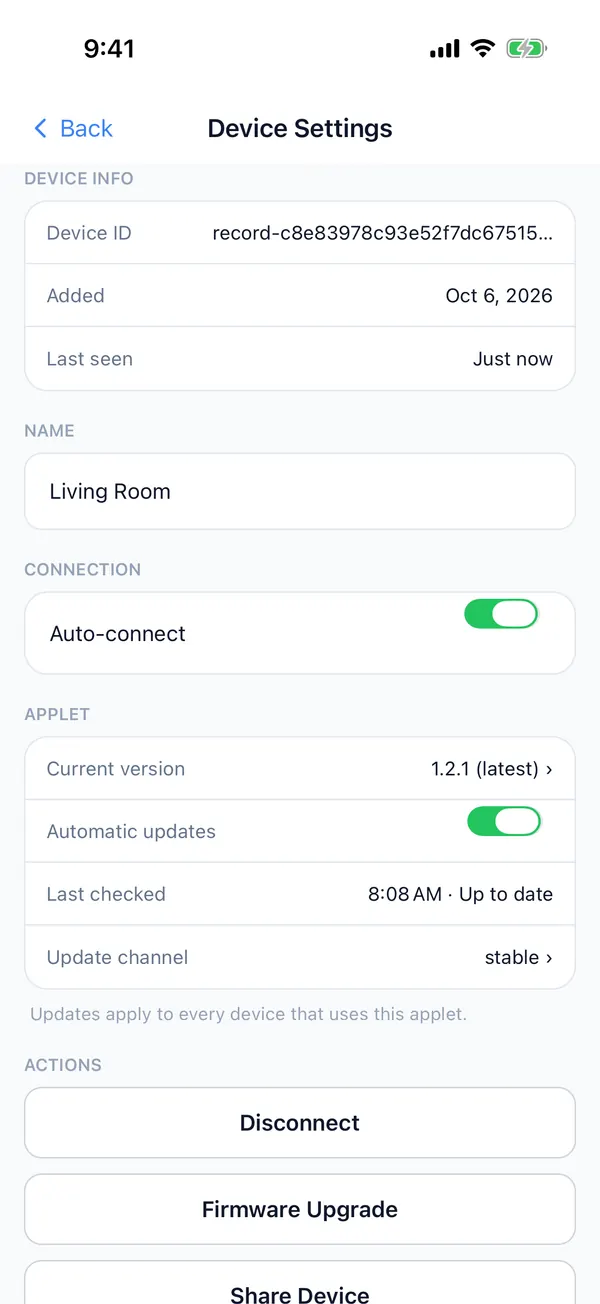
- 1
Current version
The applet version this device's controls use now. "Built-in" means the version that ships with the app and works offline. Tap it to see all versions.
- 2
Automatic updates
On by default. When off, the current version stays in use.
- 3
Last checked
When updates were last checked and the result, such as "Up to date" or "Installed 1.2.1".
- 4
Update channel
Where new versions come from, usually stable. Updates apply to every device that uses this applet.
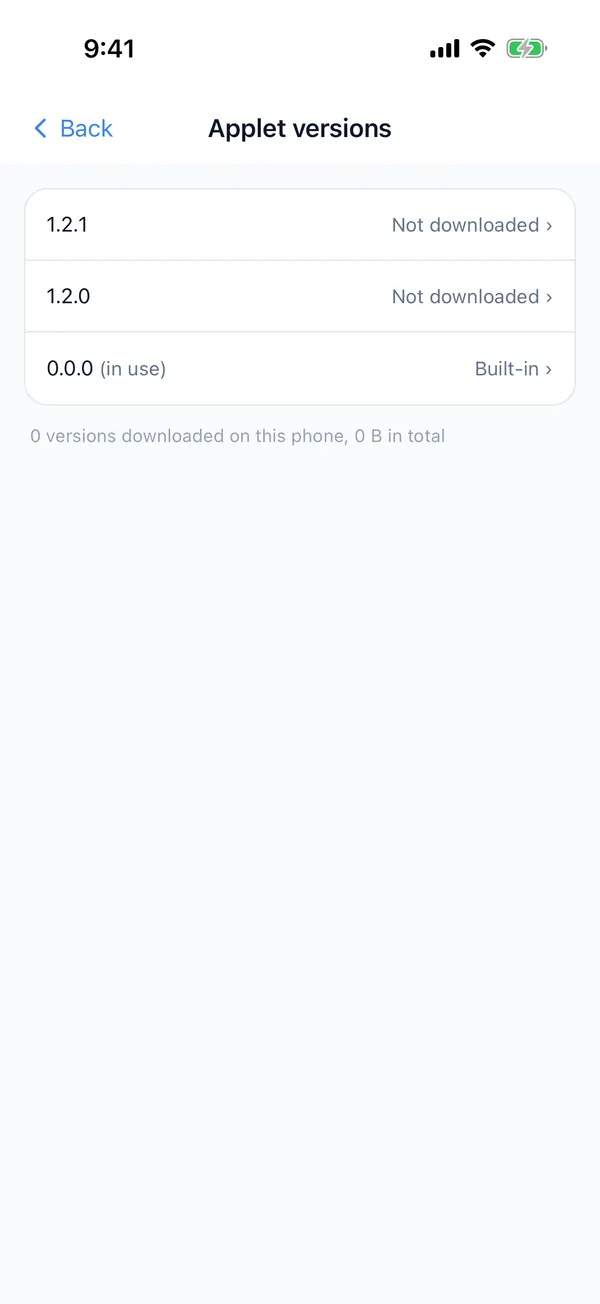
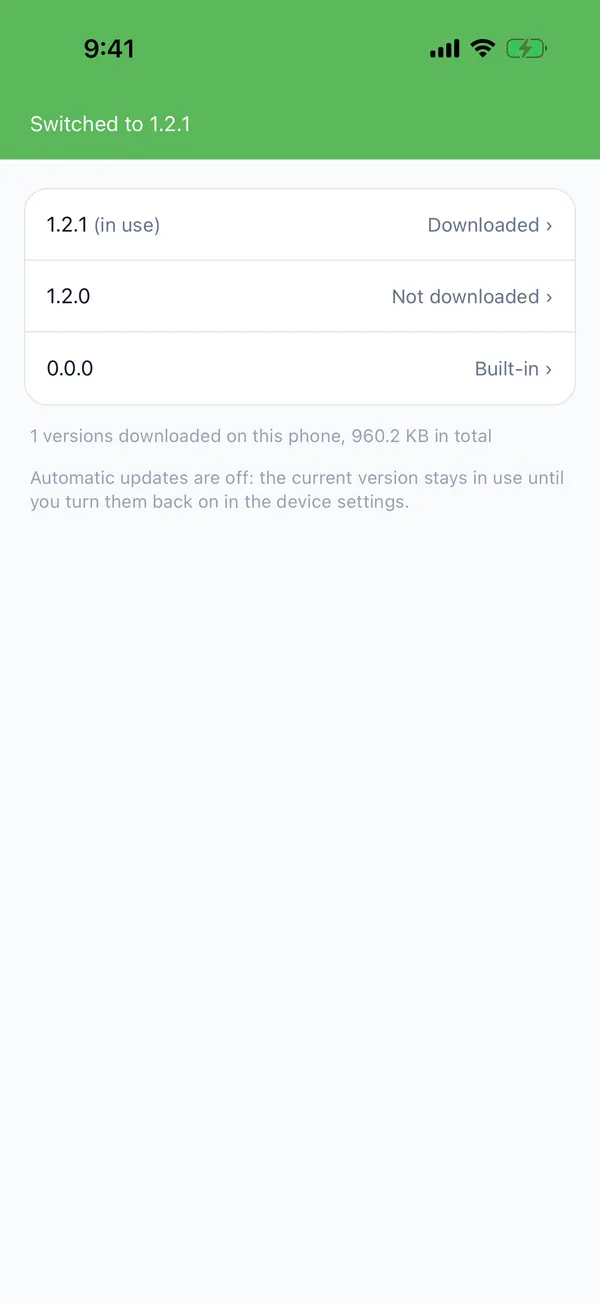
You can also go back to an older version
In "Applet versions", each version is marked "Downloaded", "Not downloaded" or "Built-in". Tap a version to read its release notes, then tap "Download and use" or "Use this version".
After you switch versions yourself, automatic updates turn off and the chosen version stays in use until you turn them back on in the device settings. Downloaded versions you no longer need can be deleted.