Share with your family, take it back any time
Several phones in a household can control the same device. This page explains how to share a device, how to take access back, and how to remove a device you no longer use.
Share a device: two phones scan each other
The two phones need to be together, but not near the device, and the sharing phone does not need to be connected to it. No new pairing is involved.
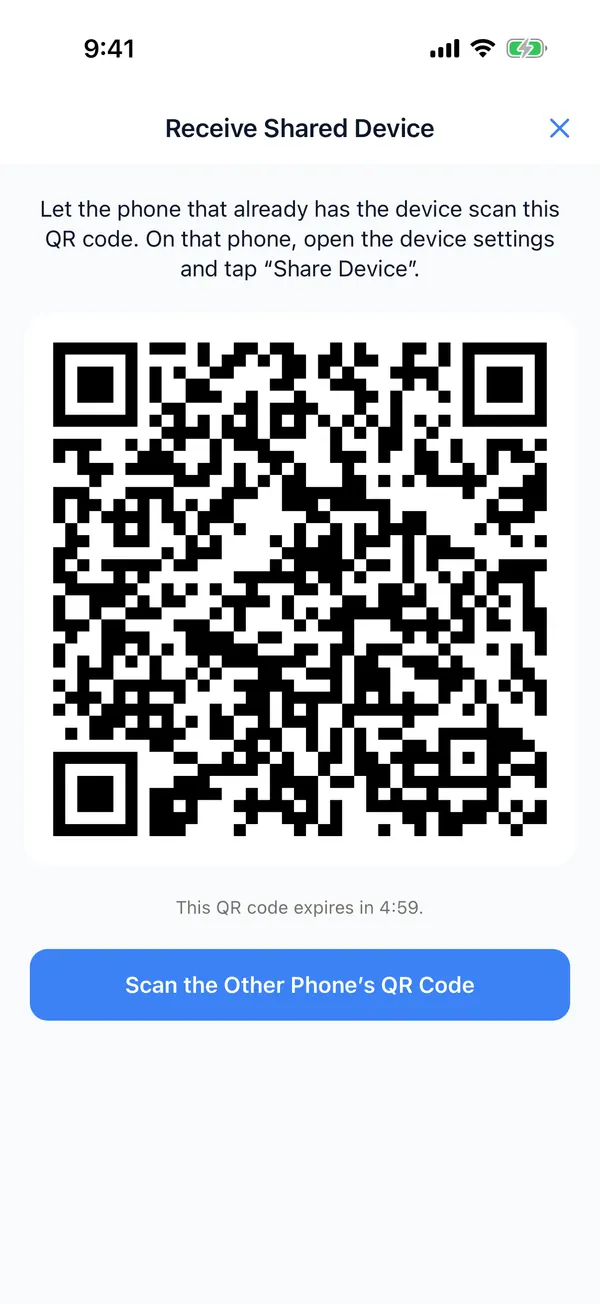
Phone that will use the device: Receive Shared Device
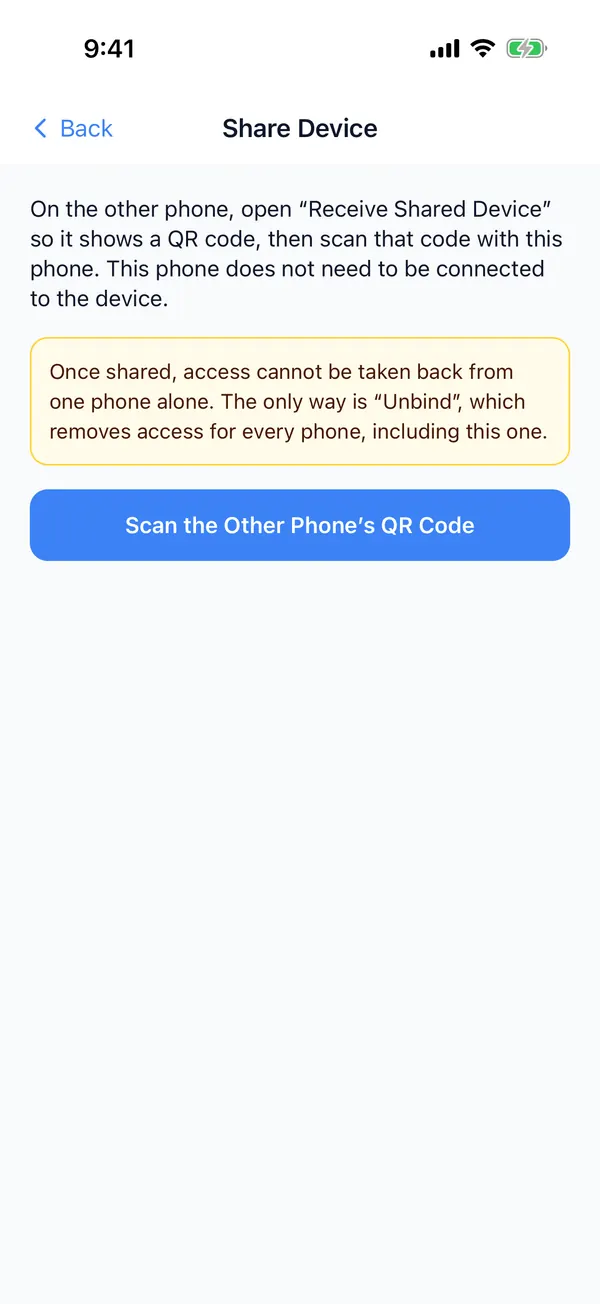
Phone that has the device: Share Device
Phone that will use the device
Tap the scan icon at the top left of the Devices tab, then tap "Receive Shared Device" below it (the Scan Devices screen has the same button at the bottom).
- 1
QR code
Let the phone that has the device scan it.
- 2
Valid for 5 minutes
For security, the code expires; then tap "Create a New QR Code".
- 3
Scan the Other Phone's QR Code
After the other phone scans your code, it shows a new one. Tap here to scan it, and the device is saved on your phone.
Phone that has the device
In the device settings, tap "Share Device".
- 4
How to take access back
Before sharing, check how access to this device can be taken back later; see the next section.
- 5
Scan the Other Phone's QR Code
Scan the QR code on the other phone's "Receive Shared Device" screen. Your phone then shows a new QR code for the other phone to scan. Tap "Done" once the other phone has saved the device.
When sharing is not possible right now
For example, if the device has not connected since it was paired, or the result of an earlier unbind has not been confirmed, the screen tells you why. Usually it is enough to open the device and wait until it connects once, then share it. Both phones should run the latest app version.
Taking access back
How you take access back depends on what the product supports, and the share screen reminds you before you share. With the current products:
All phones at once (for example, thermostats)
If a product does not support key rotation, you cannot take access back from a single phone. Tapping "Unbind" in the device settings removes access for every phone, including this one. To keep using the device, pair it again and share it with the phones you want to keep.
Rotate Device Key (for example, TRVs)
Products that support it have "Rotate Device Key" in the device settings. The device then switches to a new key: this phone stays paired, other phones that still hold the old key lose access, and the device keeps its configuration, history and firmware. Then share the device again with the phones you want to keep.
The device must be connected. A device can rotate its key only a limited number of times; after that the app shows "Rotation Limit Reached", and only pairing again restores it.
Removing a device: what the three buttons do
The red removal buttons are at the bottom of the device settings. Each one asks for confirmation first and says what is kept and what is erased.
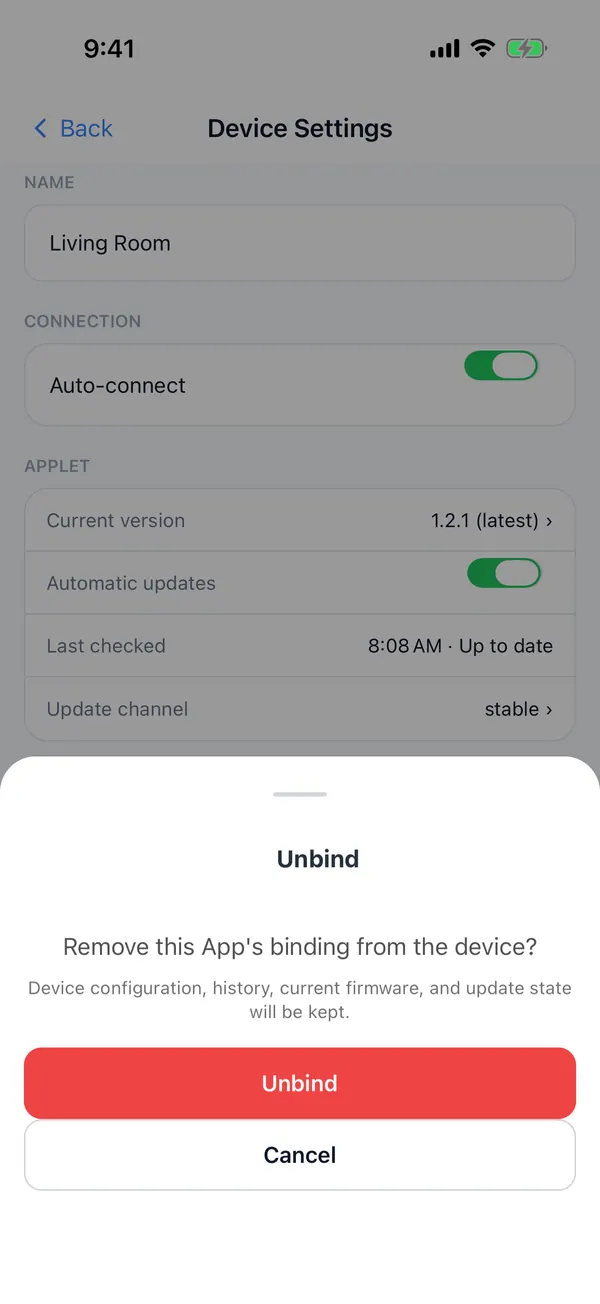
Unbind
While connectedThe device forgets its pairing, and this phone deletes its record. The device keeps its configuration, history, current firmware and update state, and any phone can pair it again later.
Unbind and Erase Data
While connectedBesides unbinding, the device is reset to factory settings: user configuration, history, schedules, user calibration and pending update data are erased, and the current firmware is kept. Use this before giving the device to someone else.
Remove Only from App
Shown while not connectedDeletes only this phone's record and credentials, without telling the device. The device still considers itself bound, so another phone can pair it only after you press the reset button on the device.
Seeing "Removal Result Unknown"?
If the app could not confirm the device's final reply after unbinding, a yellow notice appears at the top: the device may already be unbound, and the app keeps the credentials for now. This is sorted out automatically the next time the device connects, or you can tap "Remove Only from App" in the notice.
New phone, exporting the device list
You have a new phone
Use "Share Device" to share the device with the new phone; no new pairing is needed. Or tap "Unbind" on the old phone and add the device again with the new one.
Export and import devices
Settings → Data → Export Devices gives you a JSON file. It contains only the list of devices, no pairing credentials, so imported devices must be paired again before you can use them.
Remove All Devices
Settings → Data → Remove All Devices clears the device list and credentials on this phone. The devices are not told, and this cannot be undone.